
Article ID: 260211sab
Created By: SAB
Created On: 11 Feb 2026
Modified By: SAB
Modified On: 03 March 2026
Revision: 0.03
Overview.
The PM1000 Mk1 and PM2000 series of Loggers have an infra-red interface used for data download and configuration. The Loggers are shipped with an Infra-red adaptor from Actisys.
There are two different versions of the Actisys adaptor:
Type 1: is RS232 to Infra-red and has a 9 pin D connector.
Type 2: is USB to Infra-red and has a USB connector.
Type 1 adaptors work correctly on Windows 10 and 11 when paired with a supported USB to serial adaptor.
Type 2 adaptors have a built in serial to USB converter using a chip from Prolific. The exact version of Prolific chip varies depending on the age of the adaptor.
Older adaptors use a chip that is not supported in recent Prolific Windows drivers.
This application note show how to install an older Prolific driver that will support the earlier Prolific chips.
Before You Start.
You will need all of the following.
- a) An Actisys USB to Infra-Red Adaptor.
- b) A copy of the older Prolific drivers.
- c) An account for the computer with sufficient rights to install drivers.
- d) Save any ongoing work as a reboot may be required.
Method.
Step 1, Insert the Actisys adaptor.
Step 2, Check if existing driver supports the Actisys adaptor.
Step 3, Obtain the installer for the older drivers.
Step 4, Verify the installers digital signature
Step 5, Run the installer and remove existing drivers (if necessary).
Step 6, Run the installer and install the drivers.
Step 1 – Insert the Actisys adaptor.
Insert the USB to infra-red adaptor into a USB port and wait for the Prolific driver to install.
Step 2 – Check if existing driver supports the Actisys adaptor.
2.1 Open Device manager.
2.2 Open up the Ports category.
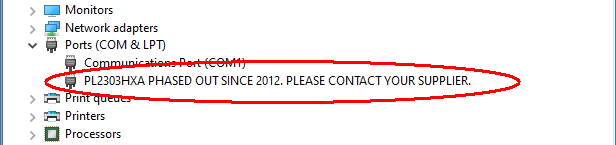
2.3 If wording similar to that shown below appears the chip is not supported:
Step 3 – Obtain the installer for older Drivers.
Obtain a copy of the installer, we’ve been using the file called:
PL2303_Prolific_DriverInstaller_v1.7.0.zip
This zip file contains the driver installer.
PL2303_Prolific_DriverInstaller_v1.7.0.exe
Step 4 – Verify the installers digital signature.
Using Windows File Explorer:
4.1) Locate the installer file
4.2) Right click and select Properties from the drop down menu
4.3) View the Digital Signatures tab as below:
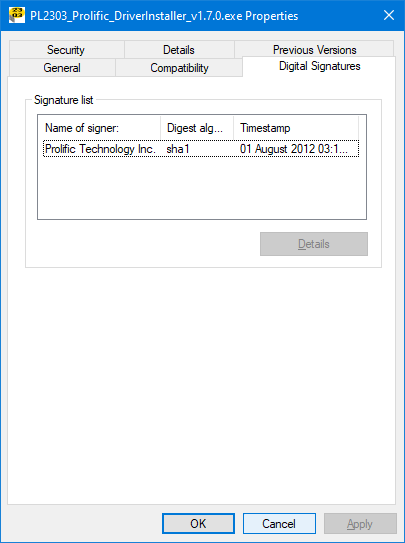
As above, the installer should be signed by “Prolific Technology Inc”.
Step 5 – Run the installer and remove existing drivers.
5.1 Unplug the Actisys adaptor if present.
5.2 Launch the installer.
5.3 “User Account Control” dialog appears asking:
Do you want to allow this app to make changes to your device
Click Yes
5.4 If PL2303 Driver Installer Program offers “Remove all installed features”
(as below) click Next then confirm removal.
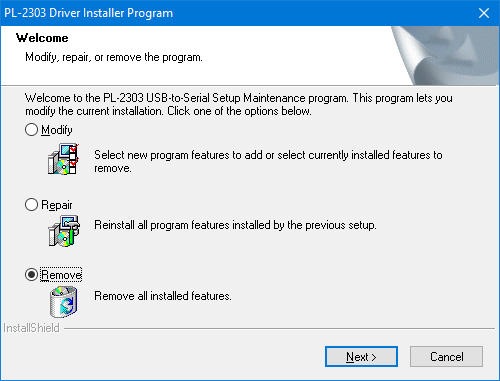
If Remove is not offered then skip to Step 6.3
Step 6 – Run the installer and install driver.
6.1 Launch the installer.
6.2 “User Account Control” dialog appears asking:
Do you want to allow this app to make changes to your device
Click Yes
6.3 The PL2303 Driver Installer Program appears as below”
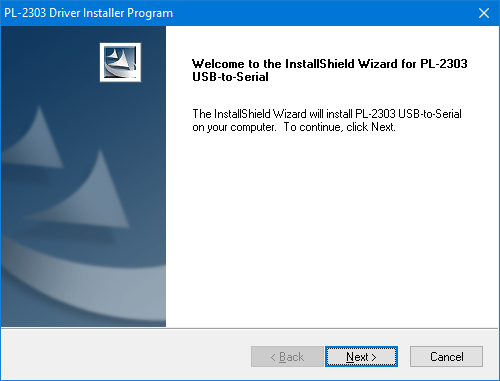
Click Next Then Finish
Step 7 – Select the older driver as the one to be used.
7.1 Plug in the Actisys adaptor.
7.2 Open Device manager.
7.3 Open up the Ports category.
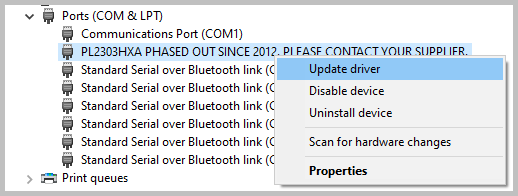
7.4 Right-click on the PL2303 device and select Update driver
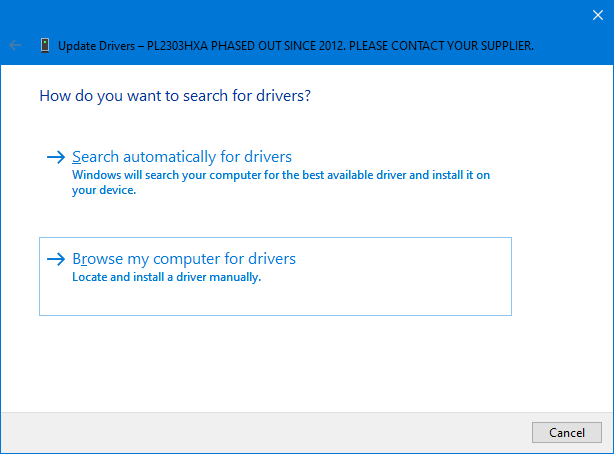
7.5 On the Update Drivers dialog click on “Browse my computer for drivers”
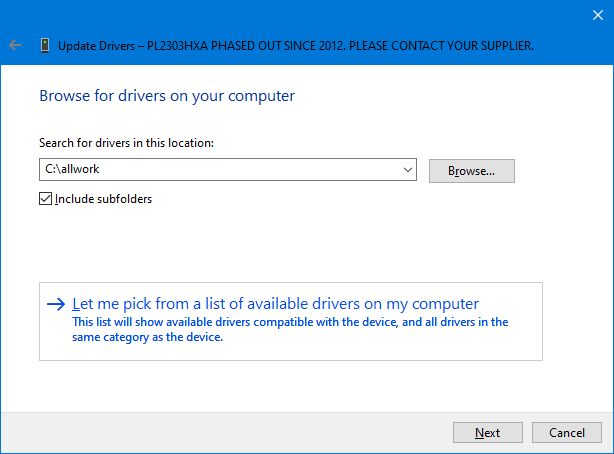
7.6 Click on “Let me pick from a list of available drivers on my computer”
7.7 Review the available drivers, select 3.4.36.247 as shown.
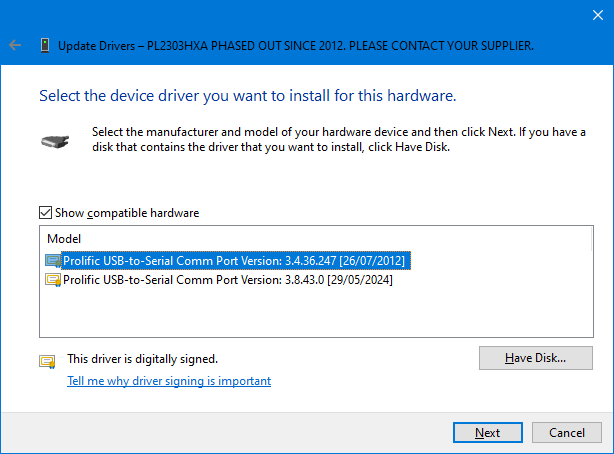
7.8 Click Next then wait for the driver to install and click Close.
7.9 You may need to restart the computer to activate the driver.